Unity
Before You Begin
To integrate the Bidease SDK, you need an active publisher account on the Bidease Monetize platform.
AppLovin MAX — Unity 6000.0 or later
1. Switch Build Platform
Open File → Build Profiles and switch the active platform to Android.
2. Verify MAX plugin
Open the AppLovin Integration Manager inside Unity and make sure the MAX plugin is installed and up to date.
3. Configure Player Settings
Go to Edit → Project Settings → Player → Other Settings and verify:
- Minimum API Level is set to Android 6.0 (minSDK
23) or higher. - Target API Level is set to Android 15.0 (API level
35) or higher.
4. Import the Bidease adapter package
Download AppLovin AdapterIn Unity, go to Assets → Import Package → Custom Package… and select the downloaded file. Import all included assets.
After import, verify that the following files are present in your project:
Assets/BideaseAppLovinAdapter/Editor/BideaseDependencies.xml— dependency manifest that pulls the required Android libraries:
<?xml version="1.0" encoding="utf-8"?>
<dependencies>
  <androidPackages>
      <androidPackage spec="com.bidease:bidease-mobile:2.0.6"/>
      <androidPackage spec="com.bidease:applovin-adapter:2.0.6"/>
  </androidPackages>
</dependencies>
Assets/BideaseAppLovinAdapter/BideaseAppLovinBridge.cs— C# bridge used to callSetAppKeyfrom your Unity scripts.
5. Set your App Key
Your App Key is available in the Bidease Monetize dashboard:
- Log in to your account at monetize.bidease.com
- Go to Applications
- Open the required application
- Copy the App Key
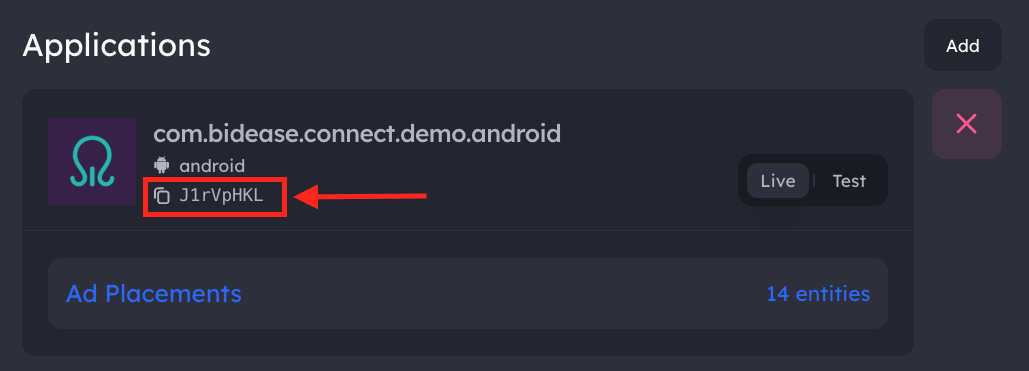
Call SetAppKey before initializing the MAX SDK:
BideaseAppLovinBridge.SetAppKey("YOUR_APP_KEY");
MaxSdk.InitializeSdk();
YOUR_APP_KEY with the App Key from your Bidease Monetize dashboard.The Bidease SDK initializes automatically when MAX triggers the mediation adapter — no additional init call is needed.
6. Configure the MAX Dashboard
Follow the step-by-step instructions for adding Bidease as a custom network and enabling it on your ad units: Configure Bidease in MAX Dashboard →
Before configuring the MAX dashboard, set up your application and create your first test placements in the Bidease Monetize UI. Monetize UI setup guide →
7. Test your integration
Follow the test mode setup instructions before release: Test Mode guide →